
Pain-free animations with AI

Part
Tuesday, 3 March, 2026
Pain-free animations with AI
Over the last year and a half it’s been the small things, the micro steps that has been the most valuable for me when it comes to using ai as a designer. Making animations with .svg has been one of those.
Here’s how to do it, and why you should try it too.
The .svg format is friendlier than you think
The svg files you export from Figma or Illustrator aren’t mysterious locked files. Quite the opposite actually. They are structured, readable descriptions of the exact vectors you drew in, say, Figma.
Every rectangle, path, stroke width, fill color and group you see in Figma’s layer panel has a direct counterpart in the svg file.
Here is an example: a raw Figma export of an isometric platform illustration
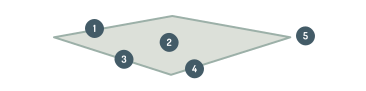
It has a path, fill, stroke width, stroke color and join shape:
<path d="M119.14 59.54L1 80.81L118.02 118.32L237.28 83.81L119.14 59.53V59.54Z"/>fill="#101010"stroke-width="2"stroke="#00B7A1"stroke-linejoin="round"
It was part of an illustration I made for an Instagram post:
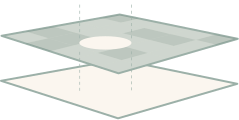
If you look at the full .svg it looks like this:
<svg width="239" height="120" viewBox="0 0 239 120" fill="none" xmlns="http://www.w3.org/2000/svg">

<g clip-path="url(#clip0_435_2675)">

  <!-- This is the bottom parallelogram -->
  <path d="M119.14 59.54L1 80.81L118.02 118.32L237.28 83.81L119.14 59.53V59.54Z"
    fill="#101010"
    stroke="#00B7A1"
    stroke-width="2"
    stroke-linejoin="round"
  />

  <!-- This is the top parallelogram (teal surface) -->
  <path d="M119.64 14.52L1.5 35.8L118.52 73.31L237.78 38.8L119.64 14.52Z"
    fill="#00B7A1"
    stroke="#00B7A1"
    stroke-width="2"
    stroke-linejoin="round"
  />

  <!-- Grid cells on the surface (25 quadrilateral paths) -->
  <path opacity="0.2" d="M1.5 35.8L25.66 31.45L48.36 38.25L24.94 43.31L1.5 35.8Z"
    fill="#101010"/>
  <path opacity="0.3" d="M53.15 26.49L74.76 32.54L48.36 38.25L25.66 31.45L53.15 26.49Z"
    fill="#101010"/>
  <!-- ... + 23 more grid cells ... -->

  <!-- An ellipse shape on the surface -->
  <path d="M105.39 49.58C119.77 49.58 131.43 46.59 ..."
    fill="#101010"/>

  <!-- Dashed vertical lines extending above and below -->
  <path d="M131.43 4.57V39.87" stroke="white" stroke-dasharray="3.07 3.07"/>
  <path d="M79.76 4.57V39.87" stroke="white" stroke-dasharray="3.07 3.07"/>
  <path d="M131.43 51.31V91.99" stroke="white" stroke-dasharray="3 3"/>
  <path d="M79.76 51.83V92.51" stroke="white" stroke-dasharray="3 3"/>

</g>
</svg>
See? It’s not scary. You can read it: there’s a bottom shape, a top shape, some grid cells with opacity values, an ellipse, and dashed lines. It maps directly to your layers in Figma. The d="M119.14 59.54L1 80.81..." parts are just coordinates, the same anchor points you’d see in Figma’s vector editor.
The animation
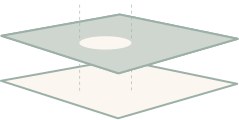
I opened this file with Claude and simply asked:
What layers/elements do you see in it?
Claude identified every element: the two parallelogram platforms, the
Then I described what I wanted in plain design language:
«All grid cells on the top surface shall randomly pulsate between
«The ellipse and dashed lines shall move slowly across the top parallelogram to illustrate a clip-path that lets the bottom parallelogram shine through. The movement should follow a pretty organic path.»
That’s it. No css syntax, no animation framework documentation, no Stack Overflow rabbit holes. Just describing the motion I had in my head.
What Claude produced
Claude restructured the svg, added css animations, created an svg mask for the «hole» effect, and reordered layers for proper depth. Here’s the result:
<svg width="239" height="120" viewBox="0 0 239 120" fill="none"
     xmlns="http://www.w3.org/2000/svg">
<style>
  /* Grid cells pulse between 20% and 50% opacity */
  .grid-cell {
    fill: #000;
    opacity: 0.2;
    animation: pulse 1s ease-in-out infinite alternate;
  }
  @keyframes pulse {
    from { opacity: 0.2; }
    to { opacity: 0.9; }
  }

  /* The "hole" follows an organic path across the surface */
  .hole-move {
    animation: holeMove 16s ease-in-out infinite;
    will-change: transform;
  }
  @keyframes holeMove {
    0%   { transform: translate(0px, 0px); }
    20%  { transform: translate(25px, -3px); }
    40%  { transform: translate(35px, 8px); }
    60%  { transform: translate(10px, 12px); }
    80%  { transform: translate(-25px, -2px); }
    100% { transform: translate(0px, 0px); }
  }
</style>

<defs>
  <!-- Mask that punches a moving hole through the top surface -->
  <mask id="holeMask" maskUnits="userSpaceOnUse"
        x="0" y="0" width="239" height="120">
    <rect x="0" y="0" width="239" height="120" fill="white"/>
    <g class="hole-move">
      <path d="M105.39 49.58C119.77 49.58 ..." fill="black"/>
    </g>
  </mask>
</defs>

<g clip-path="url(#clip0_435_2675)">

  <!-- Layer 1: Bottom parallelogram (always visible) -->
  <path d="..." fill="#101010" stroke="#00B7A1" stroke-width="2"/>

  <!-- Layer 2: Lower dashed lines (behind top surface, move with hole) -->
  <g class="hole-move">
    <path d="M131.43 51.31V91.99" stroke="white" stroke-dasharray="3 3"/>
    <path d="M79.76 51.83V92.51" stroke="white" stroke-dasharray="3 3"/>
  </g>

  <!-- Layer 3: Backing surface (visible through the hole) -->
  <path d="..." fill="#111" stroke="#00B7A1"/>

  <!-- Layer 4: Top surface + grid cells (masked with hole) -->
  <g mask="url(#holeMask)">
    <path d="..." fill="#00B7A1" stroke="#00B7A1"/>

    <!-- 25 grid cells, each with a unique animation delay -->
    <path class="grid-cell" style="animation-delay: 0s" d="..."/>
    <path class="grid-cell" style="animation-delay: 0.73s" d="..."/>
    <path class="grid-cell" style="animation-delay: 0.31s" d="..."/>
    <!-- ... each cell starts pulsing at a different time ... -->
  </g>

  <!-- Layer 5: Ellipse rim + upper dashed lines (on top, move with hole) -->
  <g class="hole-move">
    <path d="..." fill="none"/>
    <path d="M131.43 4.57V39.87" stroke="white" stroke-dasharray="3.07 3.07"/>
    <path d="M79.76 4.57V39.87" stroke="white" stroke-dasharray="3.07 3.07"/>
  </g>

</g>
</svg>
The clever part is that Claude didn’t just slap animations onto the existing file. It restructured the layer order, added a backing surface behind the top platform, and created an svg mask so the hole actually reveals the layer underneath, things that would take me hours to figure out from documentation alone.
The back-and-forth
Getting here wasn’t a single prompt. It was a conversation over
- «Move the rightmost point in the hole travel-path a bit more to the left. It moves too close to the edge.»
- «Make the hole move along it’s path a bit faster.»
- «Keep the teal fill of the top parallelogram. It will look better on page load.»
Each tweak was a one-sentence request so Claude could tackle them one at a time.
When something looked wrong I described the issue and Claude diagnosed the root cause and fixed it.
Why this matters for designers
You don’t need to learn css animation syntax. You don’t need to understand svg masks or keyframes or will-change: transform. You need to be able to describe motion.
And that’s literally what we do. We think in terms of «this fades in», «this moves along a path», «this reveals what’s underneath». The ai translates that into the technical implementation.




Above is four more versions of the hero animation I made.
How to start
- Design your illustration in Figma as you normally would. Use clear layer names if you can.
- Export as .svg
- Open the .svg in Claude (or any ai tool) and ask it to describe the elements. You’ll see it maps
1:1 to your layers. - Describe the animation you want in plain language. Be specific about timing, movement, and what should happen but use your words, not code words.
- Iterate. Open the svg in a browser, see what it looks like, and ask for adjustments. «Slower», «more to the left», «make the opacity range wider.»
The svg file is the bridge. Figma creates it, the browser renders it, and ai understands it. You already know how to design the starting point and describe the end result. The gap in the middle just got a lot smaller.
Next up: How to create full concert visuals from just .svg animations.